
How to Identify Phishing Verification Emails
By CatchTempMail · Published August 2, 2026
A verification email usually arrives because you created an account, changed a password, signed in from a new device, or requested access to a service.
That familiarity makes verification messages useful to scammers.
A phishing verification email imitates a legitimate confirmation message to trick you into opening a malicious link, sharing a one-time code, entering login credentials, downloading a file, or approving an action you did not initiate.
Some phishing emails are obvious. Others copy real company branding, use professional language, and direct recipients to websites that look almost identical to genuine login pages.
The safest approach is not to ask whether an email "looks real." Instead, check whether the message matches an action you actually initiated and whether you can complete that action through a trusted website or application without using the email's link.
This guide explains how to identify phishing verification emails, inspect links and senders, protect verification codes, and respond after a suspicious interaction.
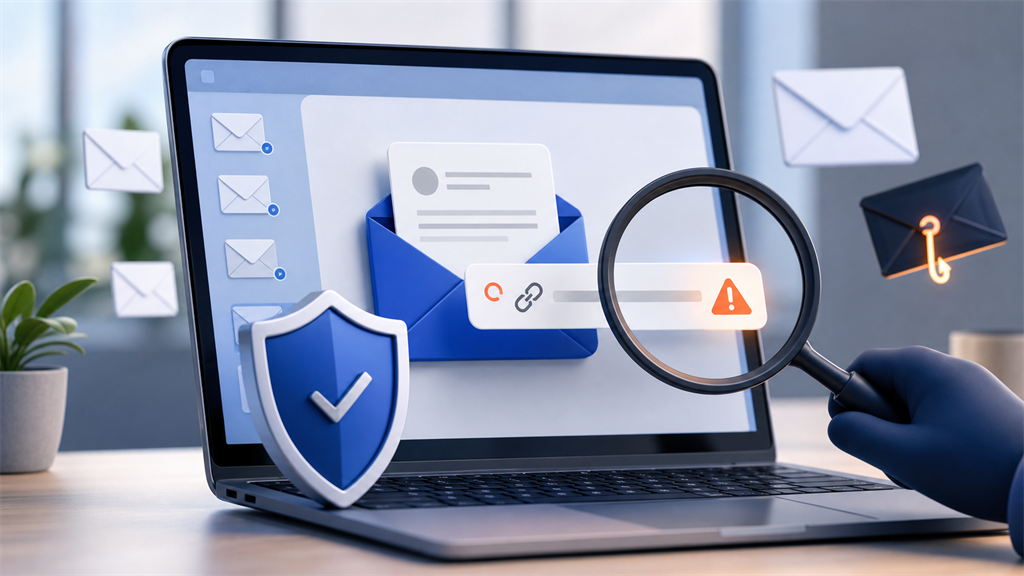
What is a phishing verification email?
A phishing verification email is a fraudulent message designed to resemble a legitimate account-confirmation or security email.
It may claim that you need to:
- Verify a new account
- Confirm your email address
- Approve a login
- Reset your password
- Validate a payment
- Confirm your identity
- Review suspicious activity
- Unlock a suspended account
- Accept an invitation
- Enter a one-time passcode
- Confirm an account change
- Prevent an account from being deleted
The message may lead to a fake website that collects your password, payment details, personal information, or multifactor authentication code.
Other phishing messages contain malicious attachments, fake support numbers, QR codes, or instructions that cause users to install software.
The FTC warns that phishing messages often impersonate familiar organizations and create a story designed to make recipients click a link or open an attachment.
Why do verification emails work so well as phishing bait?
Real verification emails are usually short, urgent, and action-oriented.
They often contain a prominent button such as:
- Verify email
- Confirm account
- Approve sign-in
- Reset password
- Review activity
- Continue registration
That structure is easy for scammers to imitate.
Recipients are also accustomed to acting quickly because legitimate verification links and codes may expire. A scammer can use that urgency to discourage careful inspection.
A fake message may arrive shortly after you use an unrelated website, making it seem connected to something you just did. It may also be sent in large volumes with the expectation that some recipients are currently registering for the impersonated service.
Never assume a verification email is legitimate simply because its timing appears plausible.
1. Ask whether you initiated the action
The first and most important question is:
Did I just do something that should generate this message?
A legitimate verification email generally follows a specific action, such as:
- Creating an account
- Signing in
- Requesting a password reset
- Changing an email address
- Enabling multifactor authentication
- Making a purchase
- Inviting someone to a service
An unexpected verification message does not always mean your account was compromised. Someone may have entered your email address by mistake, or an automated system may have sent an old or delayed message.
However, an unexpected message should not be trusted automatically.
Do not click its button merely to "see what it is." Instead, go directly to the service's official website or application and check for notifications, recent activity, or security alerts.
When an unexpected Google email-verification message is received because another person entered the address, Google advises that the recipient can disregard it and the account will remain unverified.
2. Read the full sender address
A sender's display name is not reliable proof of identity.
An email may appear to come from:
Microsoft Account Teamwhile the actual sender address is:
security-microsoft@example.netScammers can choose display names that imitate companies, coworkers, banks, delivery services, or government agencies.
Expand the sender information and examine the complete address.
Watch for:
- Misspelled company names
- Extra words or characters
- Unrelated domains
- Free consumer email addresses
- Unexpected country-code domains
- Subdomains designed to look like the real domain
- Letters replaced by similar-looking characters
- A Reply-To address different from the visible sender
For example:
security@accounts.example.comand:
security@example.accounts-confirmation.combelong to different domains.
In the second example, the controlling domain is accounts-confirmation.com, not example.com.
Google recommends checking that the sender name and email address match and reviewing suspicious-message warnings before interacting with an email.
3. Identify the actual domain
Attackers often place a trusted company's name somewhere in a domain to make it look legitimate.
Consider:
accounts.google.com.security-check.example.netThe important part is not google.com near the beginning. The registered domain is likely example.net, with everything before it functioning as subdomains.
Another deceptive example might be:
paypal-account-verification.comThe domain contains the word "PayPal," but it is not necessarily operated by PayPal.
Also watch for character substitutions such as:
paypaI.com, using a capital "I" instead of a lowercase "l"micros0ft.com, using zero instead of the letter "o"arnazon.com, using "rn" to resemble "m"- International characters that visually resemble Latin letters
When uncertain, do not try to determine legitimacy from the email alone. Open the company's official app or enter its known address manually.
4. Inspect the link before opening it
The text displayed on a button does not have to match the destination.
A button labeled:
Verify your accountcan lead to any URL selected by the sender.
On a computer, hover over the button or link without clicking. Most email applications will display the actual destination near the bottom of the window or beside the cursor.
On a phone or tablet, pressing and holding the link may display a preview. Do not continue if the application does not clearly show the destination.
Check for:
- A domain unrelated to the service
- Misspellings
- Unexpected URL-shortening services
- An IP address instead of a recognizable domain
- A long redirect URL with an unfamiliar destination
- A download file instead of a web page
- A link whose destination does not match its visible text
Google advises users to hover over links and verify that the displayed destination matches what the link claims to open.
Do not assume a link is safe merely because it begins with https://. HTTPS encrypts the connection to the website; it does not prove that the website itself is legitimate. Phishing websites can also use valid HTTPS certificates.
5. Avoid the email link when there is a safer route
Even when a message appears legitimate, you often do not need to use its link.
Instead:
- Open the official application.
- Use a bookmark you created previously.
- Type the company's known website address manually.
- Navigate to the account or security section.
- Check whether the requested action appears there.
For example, when an email says that your bank account requires verification, do not use the included button or phone number. Open the bank's official application or use contact information from your card or a trusted statement.
The FTC recommends contacting a company through a website, email address, or phone number already known to be genuine rather than using the contact details in a suspicious message.
6. Never share a verification code with another person
A verification code is intended to prove that you control a phone number, email address, authentication application, or account.
A legitimate code might be used when you:
- Sign in
- Reset a password
- Add a new device
- Change security settings
- Confirm a purchase
- Recover an account
- Register a new account
A scammer who already knows your username and password may need only the verification code to finish signing in.
They may contact you while pretending to be:
- Bank fraud staff
- Technical support
- A marketplace buyer or seller
- A delivery driver
- A company employee
- A social media representative
- Someone who entered your number by mistake
- A friend whose account has been compromised
They may claim that the code is needed to cancel a transaction, verify your identity, release a payment, or prove that you are not a scammer.
Do not provide the code.
A verification email or text commonly states that the code should not be shared. The FTC likewise warns that anyone unexpectedly asking for your verification code may be trying to access your account.
7. Treat an unrequested code as a warning
Receiving a verification code you did not request can mean:
- Someone entered your email address by mistake
- Someone is trying to create an account using your address
- Someone knows your password and is attempting to sign in
- Someone initiated a password reset
- A legitimate application resent an old request
- A scammer plans to ask you for the code
Do not reply to the message and do not send the code to anyone.
For an important existing account:
- Open the service directly.
- Check recent sign-in activity.
- Change your password if there is evidence of unauthorized access.
- End unfamiliar sessions.
- Confirm that the recovery email and phone number are still yours.
- Enable or strengthen multifactor authentication.
- Review connected applications and forwarding rules.
An unrequested code does not necessarily mean an attacker successfully accessed the account. The code may be the barrier preventing them from completing the attempt.
8. Be suspicious of requests to "verify" with your password
A legitimate verification link may occasionally lead to a sign-in page. However, phishing sites frequently use verification language to collect credentials.
Be especially cautious when an email asks you to enter:
- Your email password
- Banking credentials
- A recovery phrase
- A password-reset code
- A complete credit-card number
- A Social Security or Social Insurance number
- A passport or driver's licence
- Authentication-app codes
- Backup codes
- Security-question answers
Google states that it does not ask users to provide passwords or other private information by email.
Before entering credentials, inspect the address bar carefully. A page can reproduce the colors, logo, fonts, and layout of a real service while operating from a completely unrelated domain.
Using a password manager can help. Many password managers will not automatically fill credentials on a domain different from the one where the login was saved. This is a useful warning, although it should not be your only check.
9. Watch for urgency and threats
Phishing verification emails often create pressure with claims such as:
- Your account will be deleted today
- Verification expires in ten minutes
- Your payment will be processed unless cancelled
- Your account has been suspended
- Your password has already been compromised
- Someone signed in from another country
- Your mailbox is full
- Your benefits will be terminated
- You must verify immediately to avoid legal action
Some legitimate security messages are urgent. The presence of urgency alone does not prove an email is fraudulent.
The warning sign is urgency combined with pressure to click a link, enter information, send money, call an unfamiliar number, or bypass normal procedures.
Pause and verify the situation independently.
10. Do not trust perfect spelling or professional design
Poor grammar and awkward wording can indicate phishing, but many modern phishing emails are polished.
Attackers can copy genuine templates, logos, legal disclaimers, mailing addresses, and support language. They can also use automated writing tools to create natural-sounding messages in multiple languages.
A professional-looking email can still be fraudulent.
Do not base your decision solely on:
- Correct spelling
- Company logos
- Brand colors
- A copyright notice
- A physical address
- An unsubscribe link
- Your name appearing in the greeting
- A familiar email layout
Stolen personal information may allow scammers to personalize messages with your name, employer, recent purchase, or partial account details.
Technical and contextual checks are more valuable than visual appearance.
11. Be cautious with attachments
Most ordinary email-verification processes do not require you to open an attachment.
An unexpected verification message containing one of the following deserves extra scrutiny:
- HTML file
- ZIP or archive
- Executable installer
- Office document
- PDF containing another verification link
- Calendar invitation
- QR-code image
- Password-protected file
An HTML attachment can open a fake login form directly in a browser. An archive may conceal executable content. A document may instruct you to enable macros or bypass security protections.
Microsoft recommends avoiding links and attachments in suspected phishing messages and contacting the supposed sender through independently verified details.
Do not disable security software or browser warnings merely because an email tells you to do so.
12. Be careful with QR-code verification
A phishing email may contain a QR code and tell you to scan it to:
- Verify your account
- View a secure document
- Approve a login
- Prevent account suspension
- Access a voicemail
- Reset your password
QR codes make link inspection harder because the destination is hidden inside the image.
Before opening a scanned link:
- Preview the destination
- Confirm the domain
- Avoid entering credentials after scanning an unexpected code
- Use the official application instead when possible
- Do not install software or run commands presented as verification steps
A message describing an unfamiliar process as "security verification" does not make the process safe. The FTC has warned about fake verification and CAPTCHA-style instructions that can lead users to execute malicious commands or install malware.
13. Check whether the email is authenticated
Email authentication technologies can help receiving providers determine whether a message was authorized by the domain it claims to use.
Common mechanisms include:
- SPF
- DKIM
- DMARC
In Gmail, users can view message details and check whether a message was mailed by and signed by expected domains. Google explains that DKIM allows legitimate senders to apply a digital signature that receiving systems can verify.
Authentication is useful, but it is not a perfect guarantee.
A phishing email may:
- Come from a newly registered domain that passes its own authentication
- Be sent through a compromised legitimate account
- Use a third-party service authorized by a real domain
- Imitate a company without spoofing its exact domain
Authentication failure is a strong reason for caution. Authentication success is only one piece of evidence.
14. Do not assume a message is safe because it comes from a known contact
A friend, coworker, or supplier's account can be compromised.
Messages sent through a compromised account may:
- Continue an existing conversation
- Use the person's real signature
- Refer to previous messages
- Contain genuine contact details
- Ask you to review a document
- Request an unusual verification step
Be cautious when a known contact suddenly asks you to:
- Enter credentials
- Send a verification code
- Purchase gift cards
- Change payment details
- Open an unexpected shared file
- Approve an unfamiliar login
- Keep the request secret
Confirm the request through another channel, such as a known phone number or an in-person conversation.
Gmail may show scam warnings when a familiar contact's account appears to be sending unusual requests for money or personal information.
15. Compare the message with the action you took
A legitimate verification message should correspond closely to what you did.
Suppose you registered for a newsletter, but the email asks you to:
- Confirm a financial transaction
- Sign into your email provider
- Install an application
- Enter a phone verification code
- Provide a credit card
- Download a security certificate
The requested action does not match the original activity.
Similarly, if you requested a password reset but the email asks for your existing password, recovery code, and payment information, stop.
A normal verification process should ask only for information reasonably necessary to confirm the specific action.
16. Check names, dates, locations, and device details carefully
Security emails may include details about the event being verified:
- Account name
- Time
- Approximate location
- Browser
- Device
- Operating system
- IP address
- Purchase amount
Compare those details with your actual activity.
Be cautious when:
- The account name is wrong
- The message refers to a service you do not use
- The location is unfamiliar
- The date does not match
- The transaction amount is unknown
- The device is not yours
- The email omits details a legitimate service normally includes
Keep in mind that legitimate location estimates can be inaccurate because of mobile networks, VPNs, proxies, and internet-provider routing.
Use the details as clues, not absolute proof.
17. Do not use phone numbers contained in a suspicious email
Some phishing messages avoid malicious links and instead instruct you to call "support."
The person answering may ask you to:
- Install remote-access software
- Share a verification code
- Move money to a "safe" account
- Read your card number
- Provide banking credentials
- Purchase gift cards or cryptocurrency
- Disable account protections
- Grant access to your computer
Do not call the number in the message.
Find the company's phone number through:
- Its official application
- A statement or card already in your possession
- A known bookmark
- Its official website entered manually
Microsoft recommends using a company's published official contact details rather than numbers or links contained in a suspected scam message.
18. Understand common verification-email scams
Fake account creation
The message claims that an account was created using your email address and asks you to click a cancellation or verification button.
The button leads to a fake login page.
Fake password reset
The email says that someone requested a password reset and urges you to secure the account.
Instead of using the email link, visit the service directly and inspect the account.
Fake suspicious-login alert
The message presents an unfamiliar location or device and asks you to "review activity."
The destination collects your password and verification code.
Fake payment verification
The email claims that a purchase, subscription, invoice, or refund requires confirmation.
It may direct you to a fraudulent payment page or support number.
Fake shared-document verification
The message says you must sign in to view a document, voicemail, invitation, or secure file.
The login page is designed to steal email credentials.
Verification-code theft
A scammer initiates a real login or reset request and then asks you to send them the genuine code.
The email itself may be legitimate, but the person requesting the code is not.
Fake support verification
Someone contacts you claiming they need to verify your identity before resolving a problem.
They may be using the code to reset your password or register your number on another account.
19. How temporary email affects verification phishing
A temporary email address can keep low-value registration messages away from your permanent inbox. It may also reduce the amount of personal information connected to a one-time signup.
However, it does not make verification emails trustworthy.
A temporary inbox can still receive:
- Phishing messages
- Malicious links
- Tracked links
- Dangerous attachments
- Fake login requests
- Social-engineering attempts
The same safety rules apply.
When using a temporary inbox, remember that you may receive unrelated or unexpected mail if:
- The address was previously used
- The address is easy to guess
- Someone entered it by mistake
- The service allows user-selected addresses
- The address appeared in a leaked or shared database
Only interact with a verification message when it clearly corresponds to a registration you just initiated.
20. What to do with an unexpected legitimate verification email
Sometimes the message is genuine, but the action was initiated by someone else.
For a new-account verification message:
- Do not verify the account
- Do not reply
- Ignore or delete the message
- Use the service's official abuse process when necessary
For an existing account:
- Visit the service directly
- Review sign-in activity
- Change your password if appropriate
- Remove unfamiliar devices
- Check recovery information
- Enable multifactor authentication
- Contact official support if account details were changed
Do not click an "I didn't request this" button unless you have independently confirmed that the message and destination are legitimate. That button can also be imitated.
21. What to do if you clicked the link
Clicking a phishing link does not always mean your account is compromised. Risk depends on what happened after the page opened.
You clicked but entered nothing
- Close the page
- Do not download anything
- Update the browser and operating system
- Run an appropriate security scan if the page downloaded content or behaved unexpectedly
- Report the message as phishing
- Monitor the relevant account
You entered a password
- Change the password immediately through the official website
- Change it anywhere else it was reused
- Sign out of unfamiliar sessions
- Enable multifactor authentication
- Review recovery information
- Check for unauthorized changes
You entered a verification code
- Assume the attacker may have completed a login or account change
- Change the password immediately
- End all active sessions when possible
- Review recent activity
- Remove unfamiliar recovery methods and devices
- Contact official support for sensitive accounts
You provided banking or card information
- Contact the financial institution using a trusted number
- Freeze or replace affected cards as advised
- Review transactions
- Follow the institution's fraud procedures
You installed software or opened a suspicious attachment
- Disconnect the device from sensitive systems where appropriate
- Run trusted security tools
- Remove unauthorized remote-access software
- Change important passwords from a trusted device
- Contact your organization's security team when the device is used for work
The FTC advises users who disclose credentials through phishing to change compromised passwords immediately and check for unauthorized activity.
22. How to report a phishing verification email
Reporting helps email providers identify similar messages and protect other recipients.
Use the Report phishing or equivalent option in your email application rather than simply deleting the message.
Gmail advises users who are unsure whether a message came from a trusted sender to report it as phishing.
You can also:
- Report the message to the impersonated company
- Notify your employer's security team
- Report financial scams to the relevant bank
- Use your country's fraud-reporting service
- Preserve headers and screenshots if an investigation may be needed
Do not forward a dangerous attachment casually. Follow the reporting process recommended by your organization or email provider.
Verification email safety checklist
Before clicking a verification link, ask:
- Did I initiate this action?
- Does the requested action match what I did?
- Is the complete sender address correct?
- Does the link lead to the company's real domain?
- Can I complete the action through the official app instead?
- Is the message asking for more information than necessary?
- Is someone asking me to share a code?
- Does the email contain an unexpected attachment?
- Is it pressuring me to act immediately?
- Does the account or transaction actually belong to me?
- Is there a safer way to verify the request independently?
When any answer raises concern, stop and use a trusted channel.
The bottom line
A phishing verification email attempts to exploit a familiar security process.
The strongest warning signs include:
- A verification request you did not initiate
- A sender domain that does not match the company
- A link leading somewhere unexpected
- A request for your password or recovery information
- Someone asking you to share a verification code
- Threats or artificial urgency
- Unexpected attachments or QR codes
- Instructions to call an unfamiliar support number
- A verification step that does not match your original action
Do not rely on branding, spelling, or professional design to determine whether a message is real.
When in doubt, avoid the email's links and contact information. Open the official application or website independently and check the account there.
Temporary email can keep one-time registrations separate from your permanent inbox, but every message still needs to be treated with appropriate caution. Catch Temp Mail helps reduce unnecessary exposure of your primary address; careful verification protects the accounts and information connected to it.